A small app. A smoother Mac.
Your files.
One little wheel.
Convert, edit, and send files right at your cursor. Less opening apps. More getting things done.
macOS 14+ · Apple silicon
Free & open source. No account.
holiday.heic holiday.jpg
Try a petal. This is a preview; conversion happens in the Mac app.
The real app, in motion
A little wheel.
A whole lot less work.
See the drag, the drop, and the result. Then take a look at the tools and preferences that make Transflo your own.
Read the walkthrough
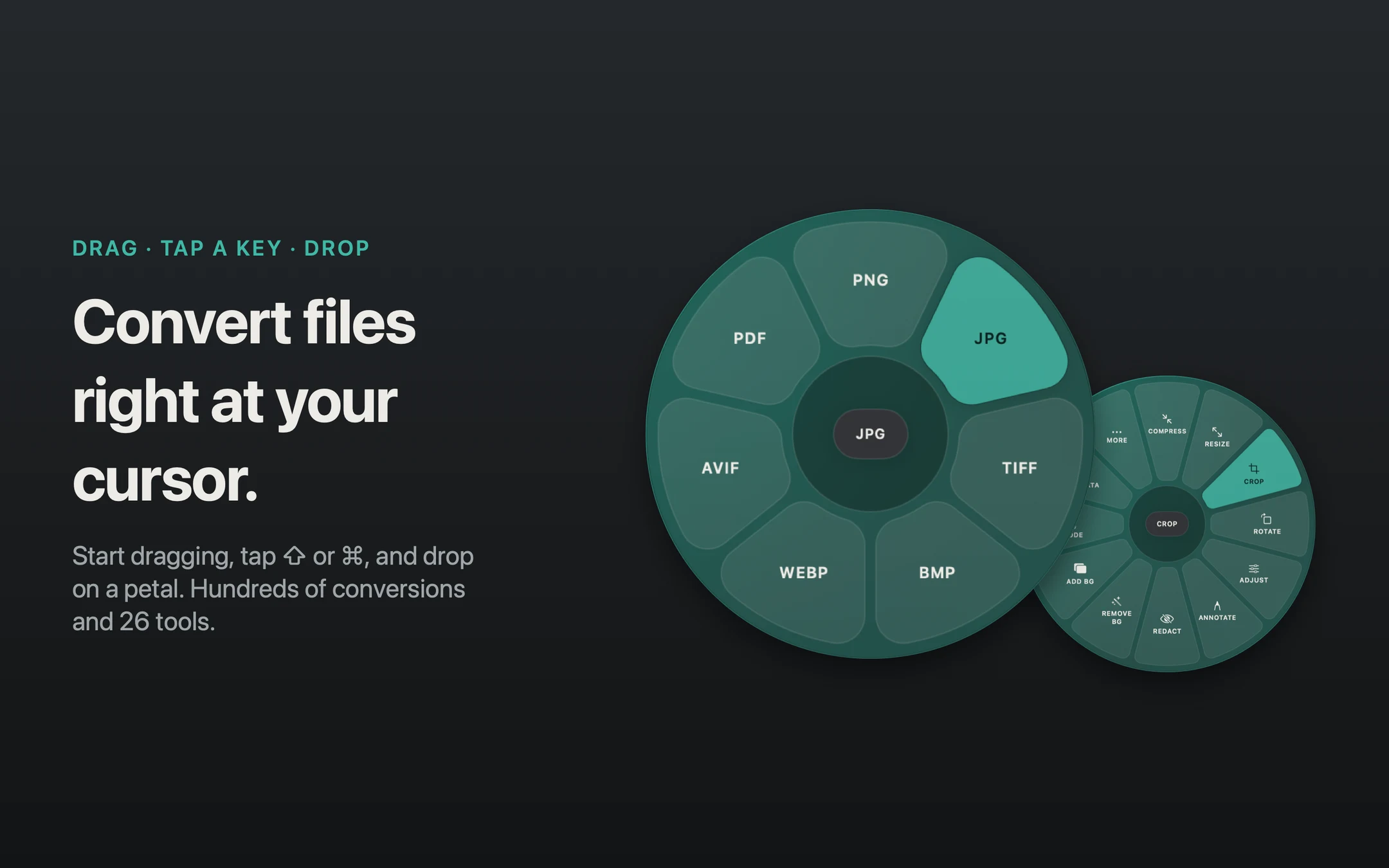
- Drag, tap, drop. Pick up a file, tap a modifier key, and drop on an output format. The progress disc shows completion; click it to reveal the result in Finder.
- Three wheels. Shift opens Convert, Command opens Tools, and Control opens Actions. Change these keys in Settings.
- Only what you use. In Settings → Wheel, choose the formats, tools, and actions that appear.
- Focused editors. Crop images, add backgrounds, and adjust the output before saving a new copy.
- Compression controls. Choose a quality preset, target size, or percentage. A target may be unreachable for some files; Transflo reports this rather than claiming every size is possible.
- A familiar Mac experience. Switch between English and Arabic, light and dark appearance, and your own accent. Customize wheel size, feedback, shortcuts, and Liquid Glass.
- Free and open source. Download the Mac app or install it with Homebrew. App Store availability is announced separately.
A closer look
Made for the way
you use your Mac.
See the wheels, focused editors, and personal touches that keep everyday file work moving. Select an image for a closer look.

Stay in your flow
Drag. Tap. Drop.
That’s the whole idea.
Keep your files in Finder and your attention on what you’re making. Transflo meets you where your cursor is.
- 01
Pick up a file.
Start dragging a photo, a document, a video, or a few files together.
- 02
Tap a modifier key.
⇧ Convert. ⌘ Tools. ⌃ Actions. A wheel appears under your pointer.
- 03
Drop on your next step.
Choose a petal. Get a new result beside the original, with progress at a glance.
More of a keyboard person? Select files in Finder, press ⌥⌘↩, then use the arrow keys and Return. Esc cancels.
One utility, plenty of possibilities
From “wrong format”
to “ready to go.”
Turn HEIC into JPG. Extract audio from a video. Make a PDF from a handful of images. The Convert wheel shows the formats that work for your selection.
Some iWork conversions require Pages, Keynote, or Numbers installed. Available choices depend on the files and installed helpers.

Little edits, without the detour
A quick crop.
A cleaner background.
Back to your day.
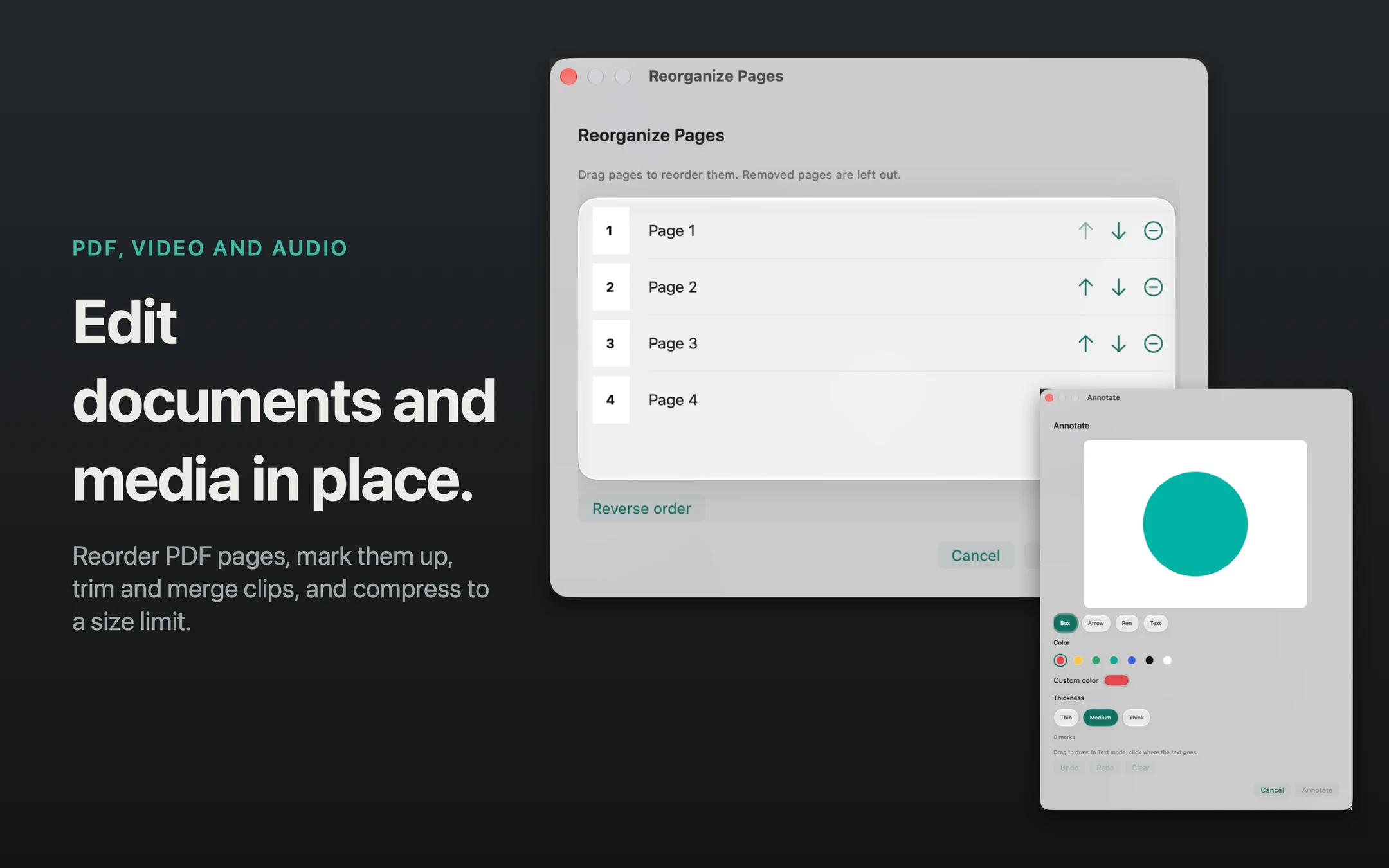
26 tools, with focused editors for 25 of them. Set the crop, compare a background, listen to an audio change, or arrange PDF pages before you save. Mute stays a quick action.


More control, where it counts
Small jobs.
Proper tools.
Useful choices, previews before you save, and a new output beside your source. Open a workflow below to see what you can adjust.
Features shown reflect the current app. Check the release notes for the features included in your download.
01Images, with a little more intention.
Crop by aspect ratio or exact pixels, rotate and mirror, or resize with a proportion lock. Twelve photo adjustments cover light, color, detail, and vignette, with presets and an original comparison.
- Compress your way: quality presets, a target size, or a percentage, plus image dimension limits.
- Backgrounds: preview subject removal, soften edges, keep transparency, or choose a solid color. Add Background brings gradients, canvas ratios, padding, corners, and shadows.
- Collages: reorder sources, set cell dimensions and spacing, and choose fit or fill with a composed preview.
02Hear it. Trim it. Make it fit.
Use playback and waveforms to find your range. Trim by precise timestamps, change speed from 0.25× to 4×, split at your own cut points, or replace selected intervals with a bleep.
- Loudness: Podcast, Streaming, and Broadcast presets, custom loudness and peak targets, measured two-pass processing, and processed-audio audition.
- Channels: mix to mono, keep the left channel, or keep the right. Listen to a processed preview before exporting.
- Frames and clips: step through video frames and export PNG or JPEG snapshots. Reorder clips before merging; mute an entire video in one step.
03Give your PDFs a better order.
Reorder or extract pages, split documents, and combine sources. Images to PDF lets you choose the order, A4 or Letter pages, orientation, margins, and fit or fill.
- Markup across pages: add arrows, boxes, pen strokes, or text, with separate page edits and undo history.
- Redaction: review blacked-out regions page by page. Edited pages are flattened to remove covered text.
- Safer batches: page selections and time ranges are checked against every source before batch outputs are written.
04Useful details, out in the open.
Inspect metadata before clearing selected groups, edit titles and authors, or rename a batch with a preview of the resulting filenames.
- QR and barcodes: review the detected text, copy individual or selected results, and open a website only when you choose.
- Metadata: choose descriptive, location, camera, or other fields to remove. Required format information and newly written encoder tags can remain.
- Originals stay available: edits and conversions write new files. Rename and Move intentionally change the selected names or locations.

It’s not always a conversion
Send it.
Move it.
Keep it handy.
AirDrop it to someone nearby. Copy a path for your next command. Park files on the floating shelf until you need them. Your everyday file actions, a drop away.
Meet your shortcuts ↗Your Mac does the work
Your files stay
in your hands.
File processing happens locally. No upload queue, account, advertising, or analytics in the app. Share only when you choose an action like AirDrop.
Check for Updates contacts GitHub only when you request it. This website is delivered by Cloudflare.
Read the full privacy policy ↗Feels like your Mac
A wheel with
your own spin.
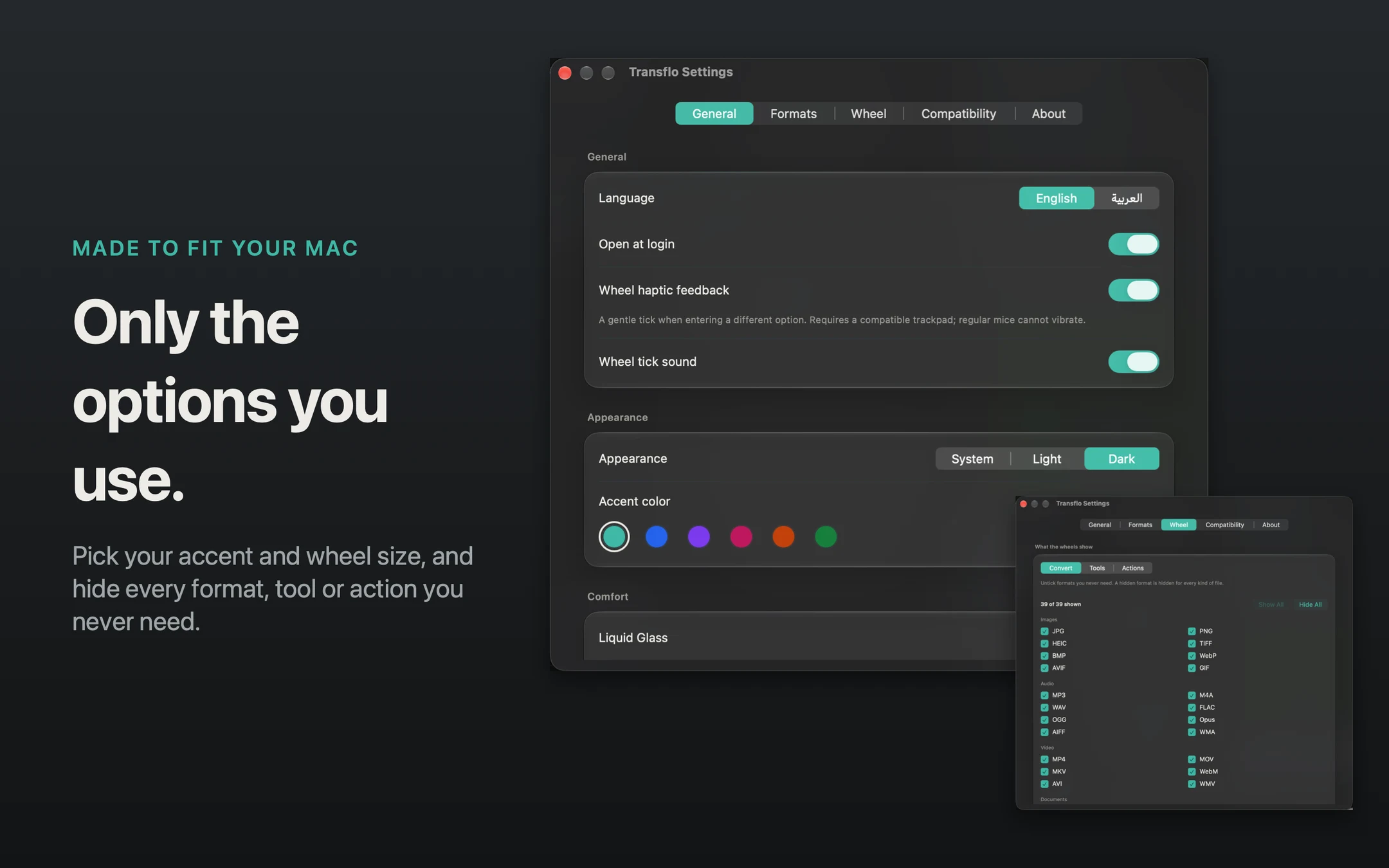
Pick an accent and a wheel size, then keep just the options you use. Choose English or Arabic, follow your Mac’s appearance, and set your shortcuts. Optional tick sounds and trackpad haptics have separate switches. Your choices stay saved between launches.
Teal. A little calm for your cursor.
A website preview. Choose your saved app preferences in Transflo Settings.
Less reaching.
More your way.
Switch between Convert, Tools, and Actions, then choose the categories and options each wheel shows. Set Compact, Standard, or Large below the checklist; the wheel adapts to your selection.

A familiar feel.
A personal finish.
In General, choose your language, appearance, custom accent, Liquid Glass, Reduce Motion, and separate sound and haptic feedback. Wheel sizing sits below your format, tool, and action choices in the Wheel tab. Your preferences stay saved between launches.

A few good
questions.
Is Transflo really free?
Yes. Transflo is open source under the MIT License, with no subscription, trial, usage limits, or account.
Will it overwrite my originals?
Conversions and edits create new output files and avoid existing paths. Rename changes the selected filenames; Move relocates the selected files. Keep backups of important work.
Does it need the internet?
File processing runs locally. Checking for updates, visiting links, or sharing through system services may use a network connection.
Which Macs can run it?
Transflo currently requires macOS 14 Sonoma or later on Apple silicon. Some appearance features, including Liquid Glass, depend on your macOS version.
Can every file reach an exact compression target?
No. Source content, format, and quality limits affect the smallest useful output. Choose a larger target or a quality preset if the requested size cannot be reached. PDF compression uses the system reduction filter instead of a byte target.
Can I edit animated or multipage images?
Tools that write a single image reject animated and multipage sources rather than silently discarding their extra frames. Available conversions depend on the input format.
Where is Transflo after I open it?
It lives in the menu bar. The first launch shows Getting Started. Once you finish the tour, use the menu-bar icon for Settings, Jobs, Getting Started, and updates.
A little less friction.
A lot more flow.
Make the next file a little easier.
Download for MacmacOS 14+ · Apple silicon · Free & open source
Installation details →